Hit Factor
To upload your USPSA data, go to RankRicer Matches.
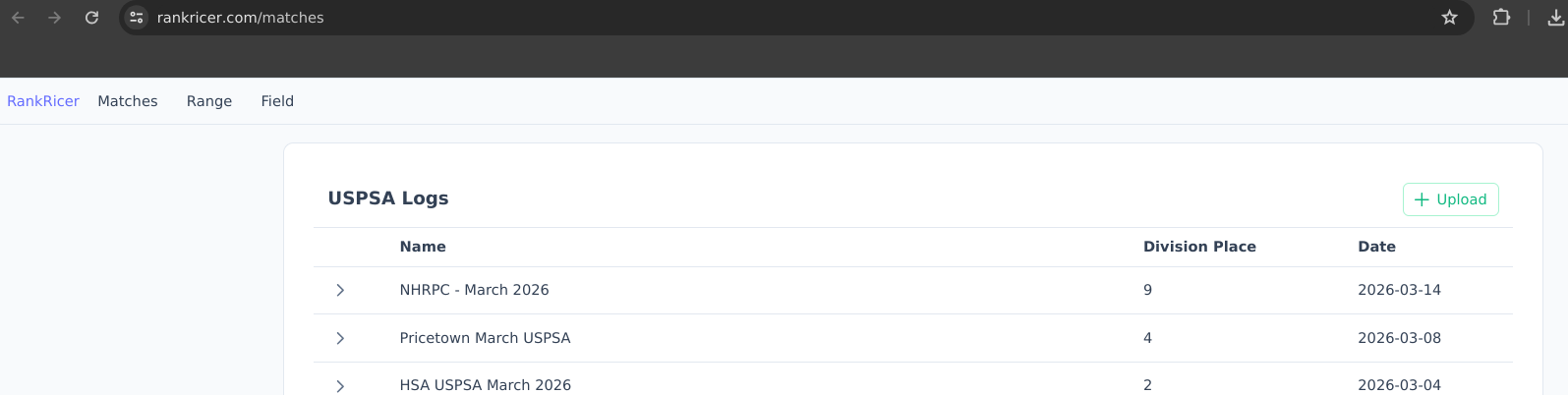 You will see an “Upload” button on the top right. Clicking this will pop up your file explorer.
Look for the file you downloaded from practiscore.
You will see an “Upload” button on the top right. Clicking this will pop up your file explorer.
Look for the file you downloaded from practiscore.
After selecting the file. You will see this indicator in the bottom of the page.
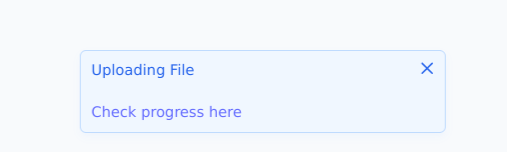
It should take under a minute to upload the file.
If you click on the “Check progress here”, you will see this page.
 When the status says “success”, your file has been completely uploaded.
When you go back to the Matches page you will see the uploaded item in the logs table.
You will also see your data visualized in the home page.
When the status says “success”, your file has been completely uploaded.
When you go back to the Matches page you will see the uploaded item in the logs table.
You will also see your data visualized in the home page.
To upload your SCSA data, follow the same steps above.
Practiscore
Download your USPSA data from practiscore.
Search for your USPSA match by using the input box on the top left.
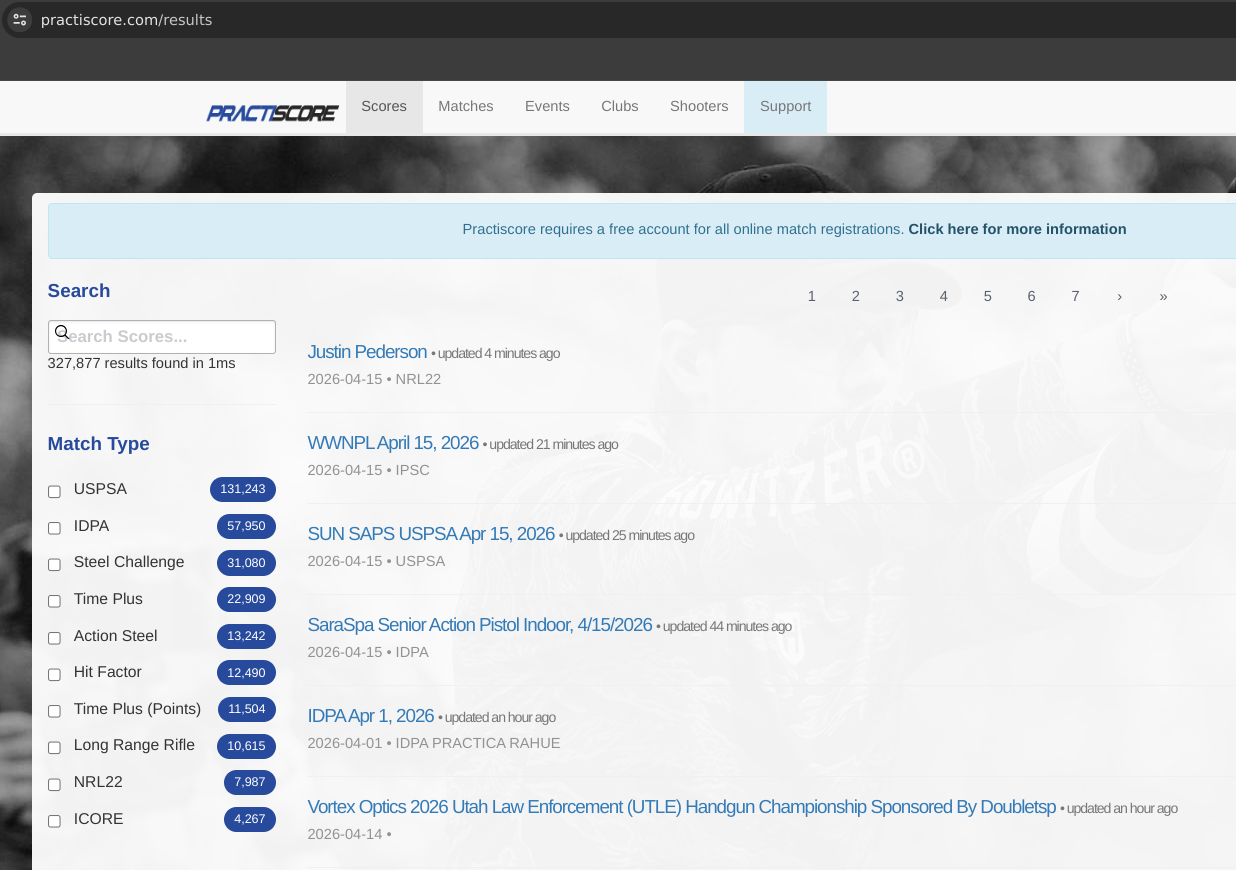
When you find your match, navigate to it. It will take you to this page.
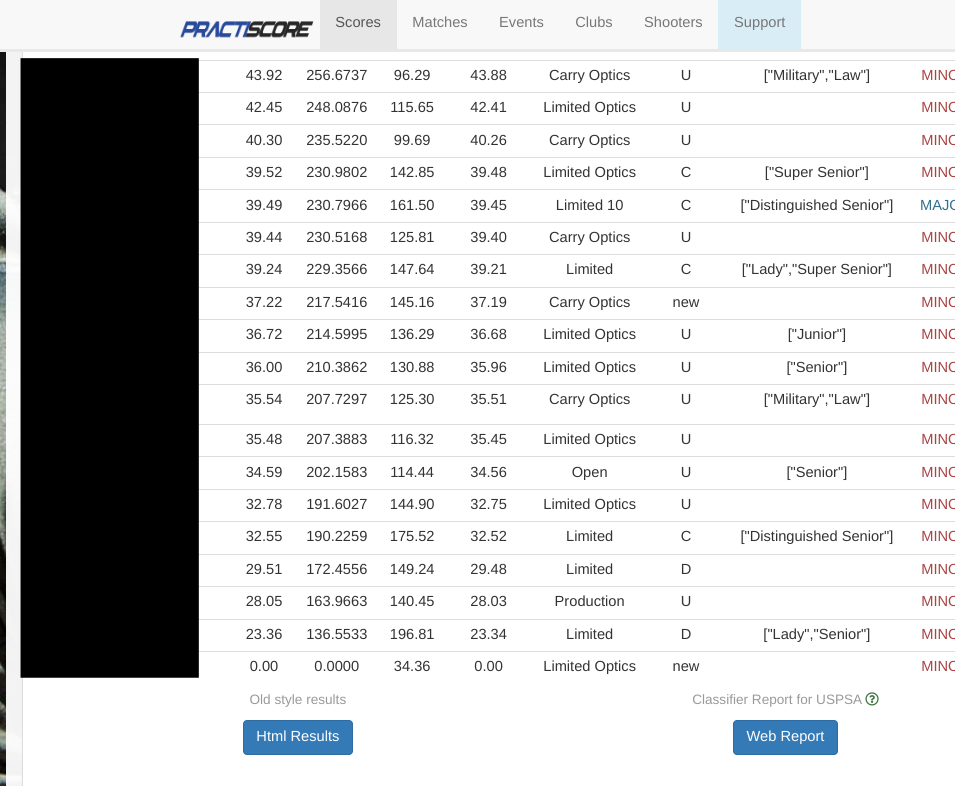 In the bottom of the page you will see “Web Report”. Navigate to it.
It will take you to this page.
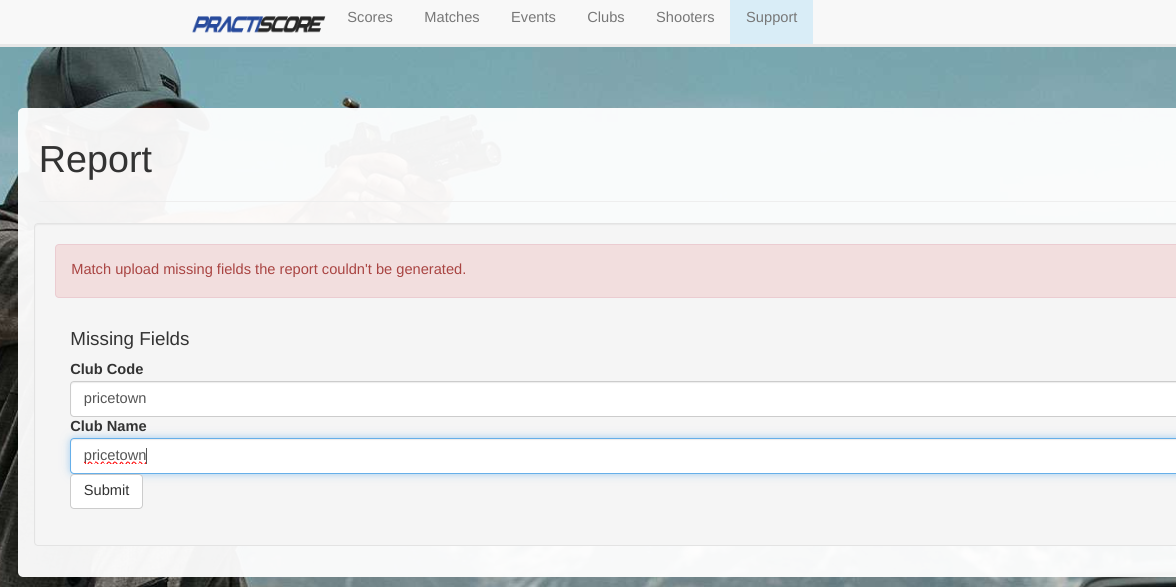
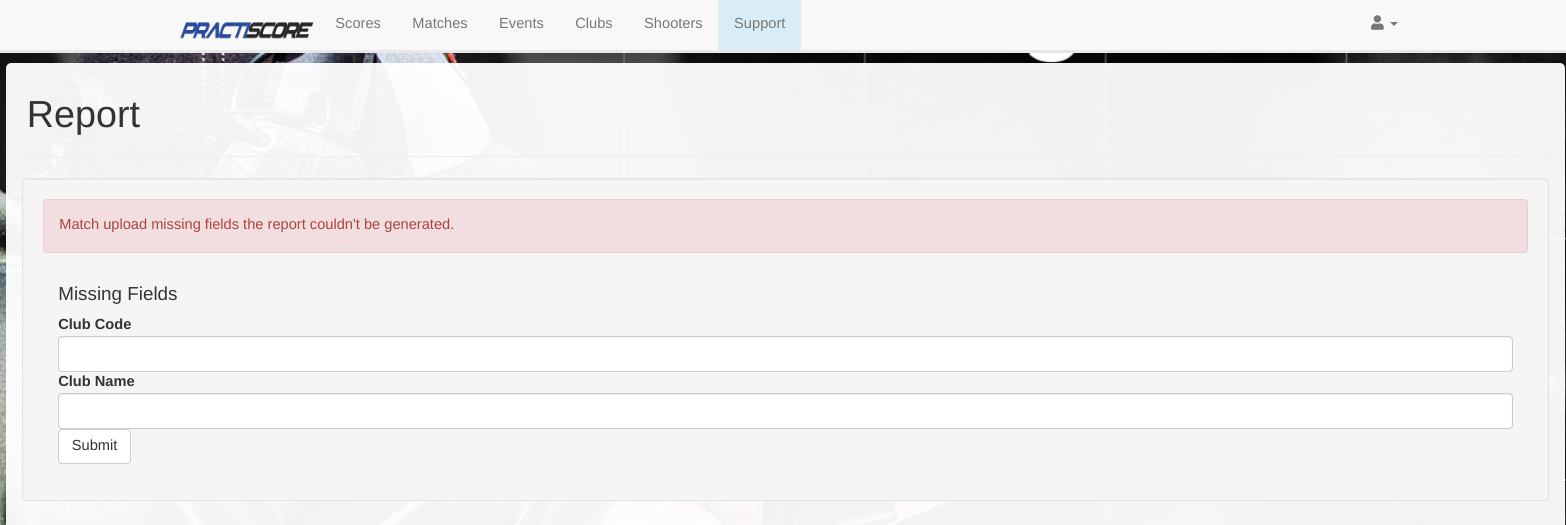 It will ask you for either “Club Code” or “Club Name” but sometimes it will ask
for both like the screenshot above. Club Code and Club Name are usually the name of the club.
For example in the match named “Pricetown USPSA Apr 12, 2026”, the club code and club name would be “pricetown”.
If this doesn’t work, feel free to reach out to the match director and ask for this information.
It will ask you for either “Club Code” or “Club Name” but sometimes it will ask
for both like the screenshot above. Club Code and Club Name are usually the name of the club.
For example in the match named “Pricetown USPSA Apr 12, 2026”, the club code and club name would be “pricetown”.
If this doesn’t work, feel free to reach out to the match director and ask for this information.
After filling in the required inputs, click “Submit”. This will download a file. By default, it is named “report.txt”.